The app contains an AutoHotKey script. Years ago all antiviruses detected these scripts as viruses/trojans due to their characteristics. Currently, most antiviruses have been updated and detect that AutoHotKey is safe, although some still do not.
You can upload the exe file to virustotal.com and you will see that all the major antiviruses mark it as safe. Only a few showing it as unsafe, which is known as a false positive.
If your antivirus blocks the app from running, add the exe file to the exceptions list.
Some browsers may block the download. As mentioned above, you can allow the download safely. The procedure for allowing blocked downloads varies depending on the browser used.
Extract the downloaded ZIP file and run the “ALEC.EXE” file to start the app. An icon will appear in the system tray. To close the app, right click on the system tray icon and select Exit.
Since ALEC only interacts with Live and does not interfere when working with other programs, you can choose to start it automatically when Windows starts.
In the following How To Geek article you have a small guide explaining how to do it.
https://www.howtogeek.com/208224/how-to-add-a-program-to-startup-in-windows/
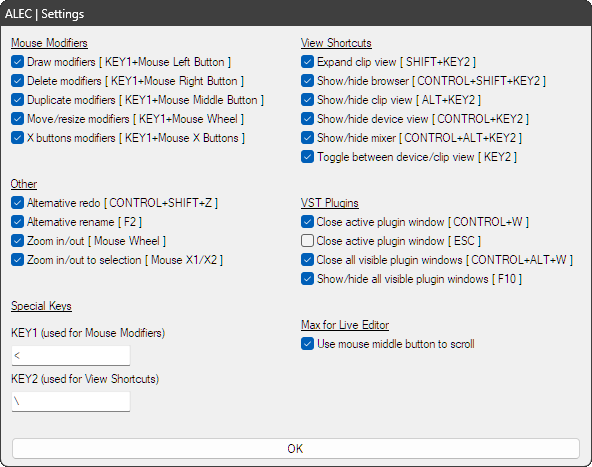
The first time you run ALEC, the settings window is displayed. Select the features you want to use and the special keys. You can return to the settings window at any time by double-clicking the ALEC icon in the system tray.
Note that if you don’t enter any of the special keys, the default keys will be established again.
Although setting both special keys is mandatory, you can assign the same key to both fields. This can be useful to avoid wasting two keys if you’re only going to use Mouse Modifiers or View Shortcuts.
KEY1 is the special key used for Mouse Modifiers. When held down, the mouse buttons perform different actions. It is used in conjunction with the CONTROL and SHIFT keys to perform additional actions.
KEY2 is the special key used for View Shortcuts. When used alone or in conjunction with the CONTROL, ALT and SHIFT keys, it shows/hides different elements of the Live GUI.
Mouse X1 and X2 are the back/forward mouse buttons.
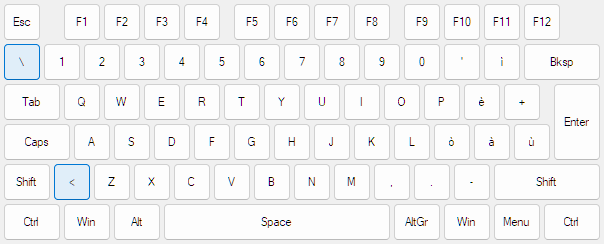
The image above shows a suggestion of the keys to use.
KEY1 located near the SHIFT and CONTROL keys, for easy access to the different combinations when using Mouse Modifiers.
KEY2 located above the TAB key. Since its main use is to toggle between device/clip views, and the TAB key is used to toggle between session/arrangement views.
Navigate through the tab box below for details of the different actions performed when using the special key KEY1 in conjunction with the mouse buttons.
Examples of each action are shown in the MIDI editor, but they are not limited to that. Depending on the type of action, it can be applied to different elements (MIDI notes, clips, tracks, devices, automation, envelopes).
KEY1 + Mouse Left Button
Insert MIDI notes and modify envelopes/automation as if Live’s Draw Mode were active. When used with Draw Mode active, acts as a selection tool.
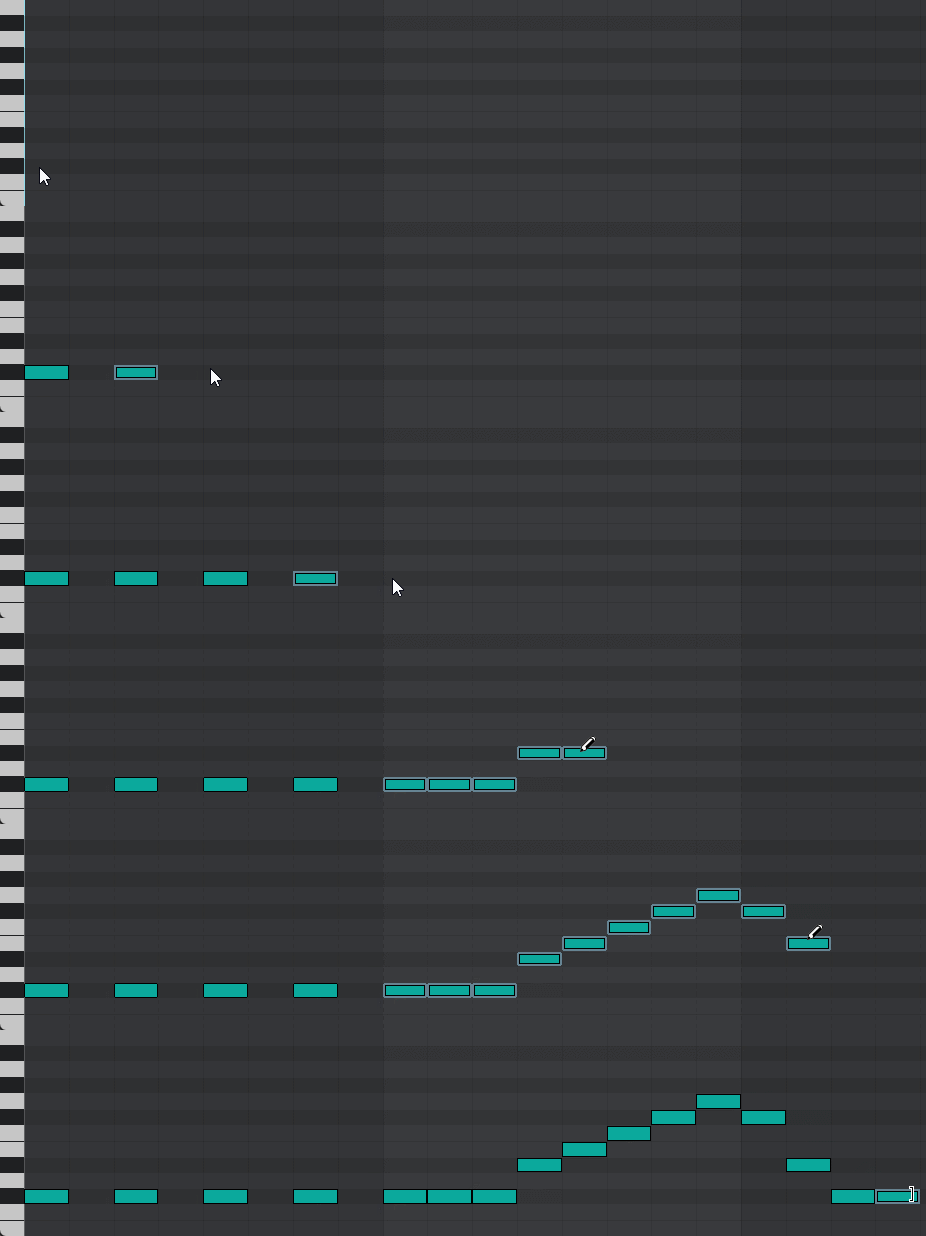
KEY1 + SHIFT + Mouse Left Button
Click and drag to insert a MIDI note and modify its length.
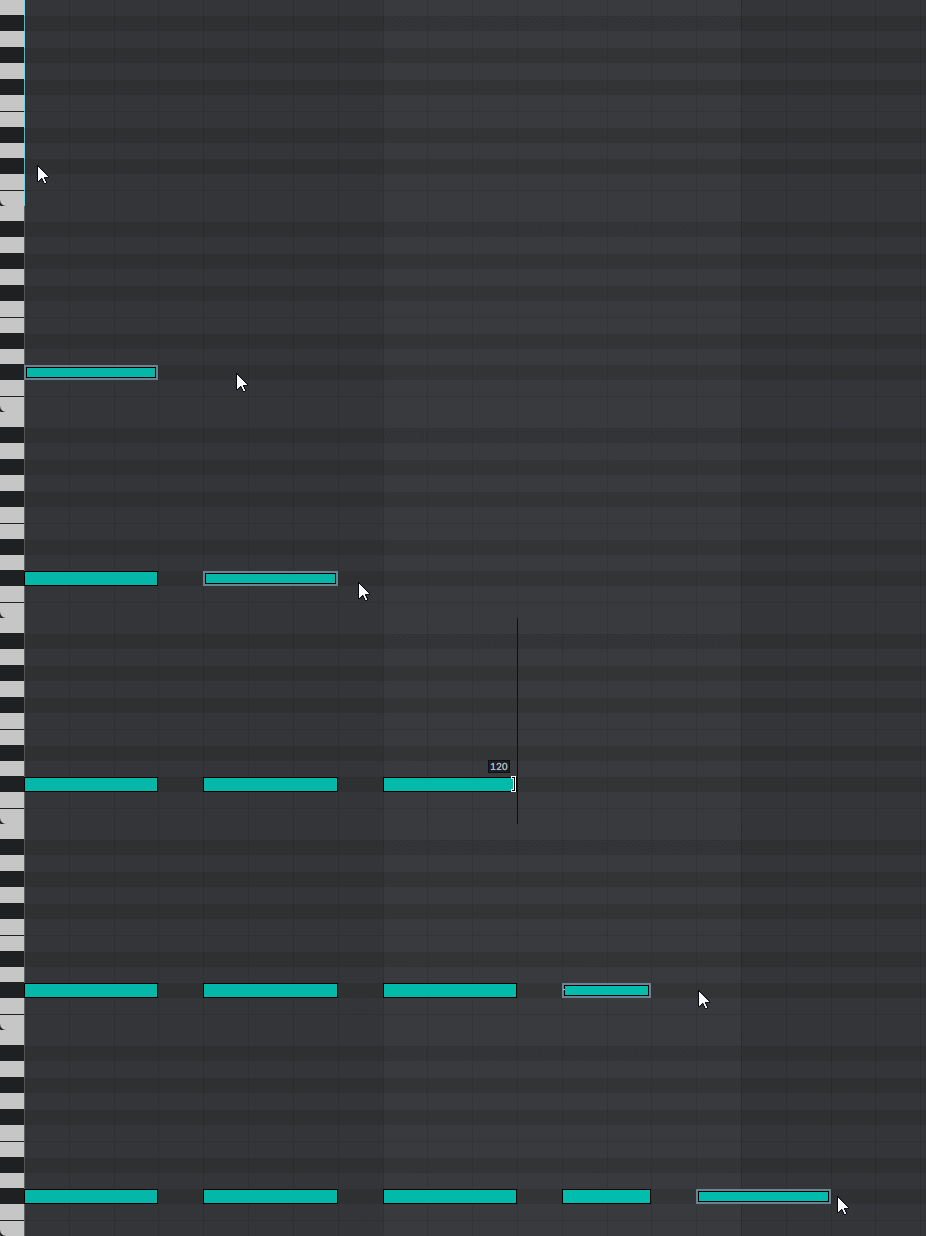
KEY1 + Mouse Right Button
Deletes the item at the mouse cursor position.
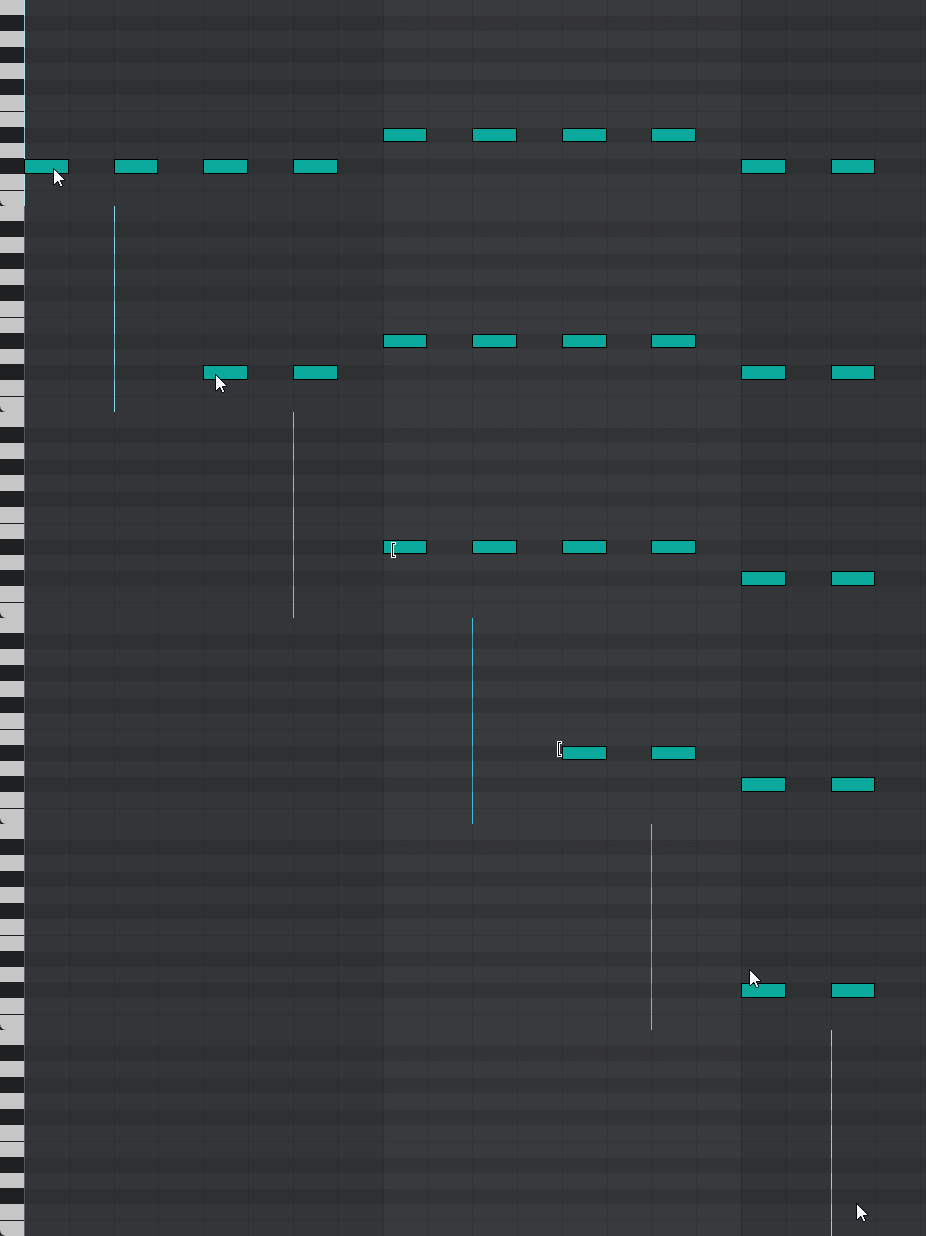
KEY1 + SHIFT + Mouse Right Button
Deletes the selected items. Equivalent to using the delete key.
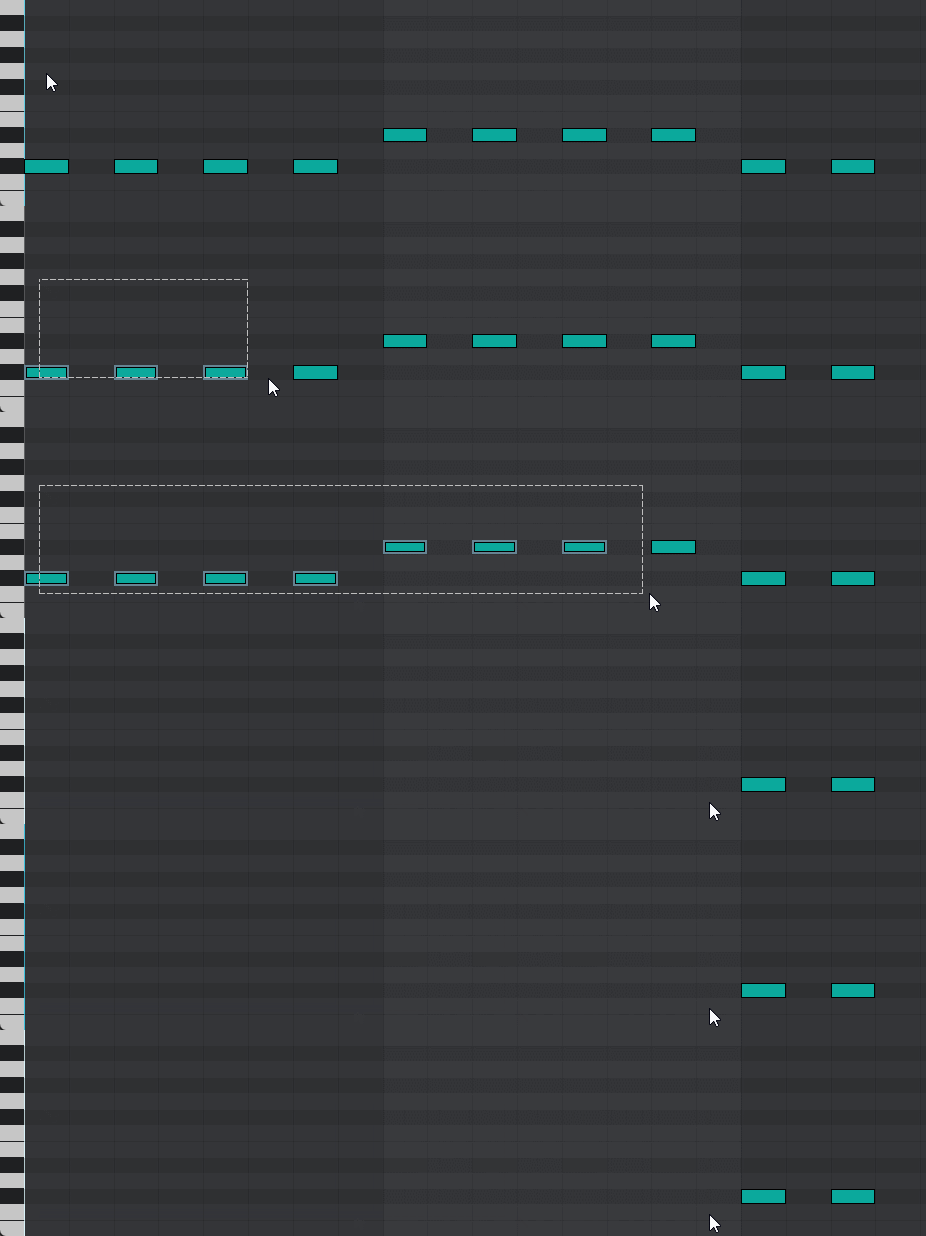
KEY1 + Mouse Middle Button
Duplicates the selected items to the mouse cursor position.
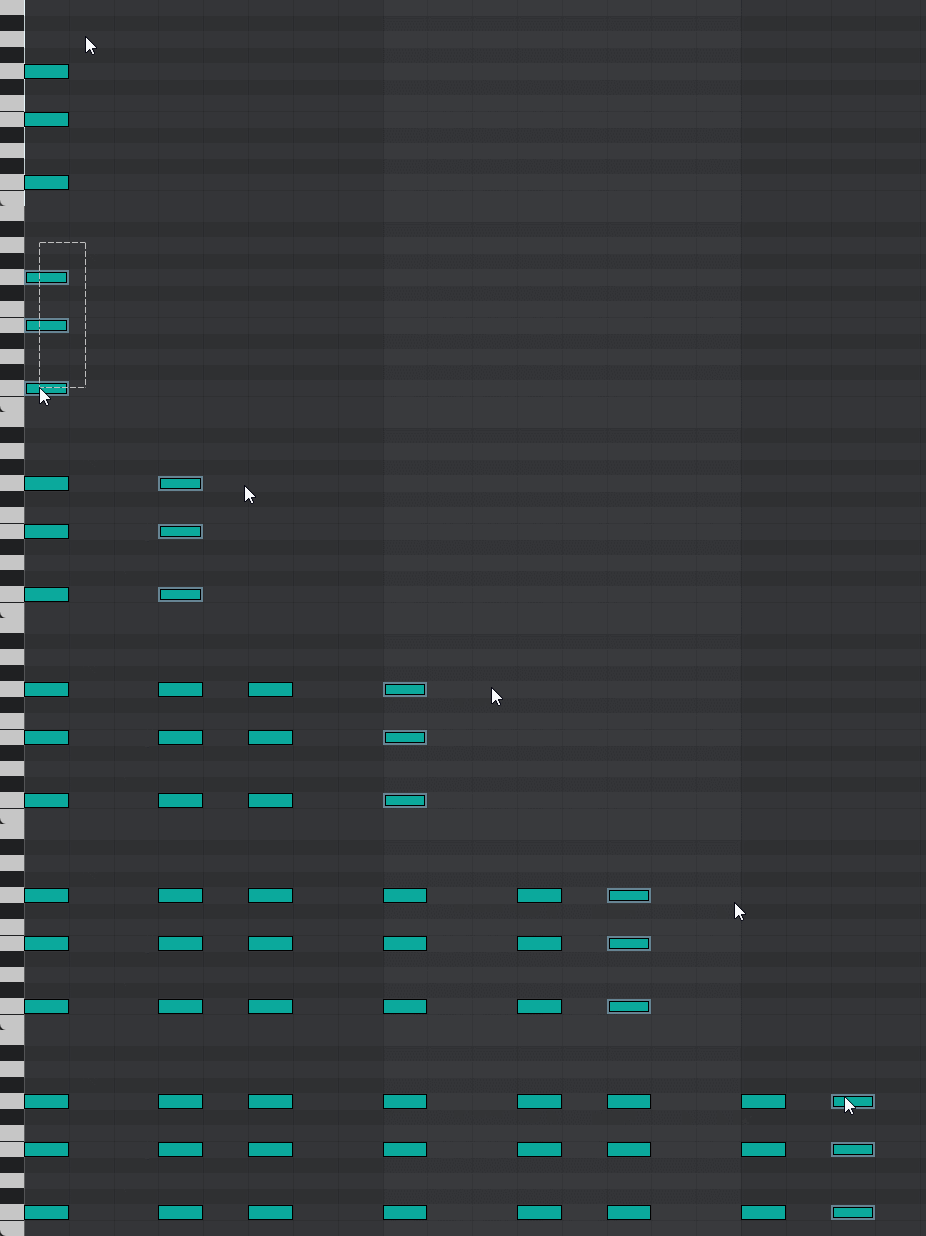
KEY1 + SHIFT + Mouse Middle Button
Duplicates the selected items in the same way as Ctrl+D
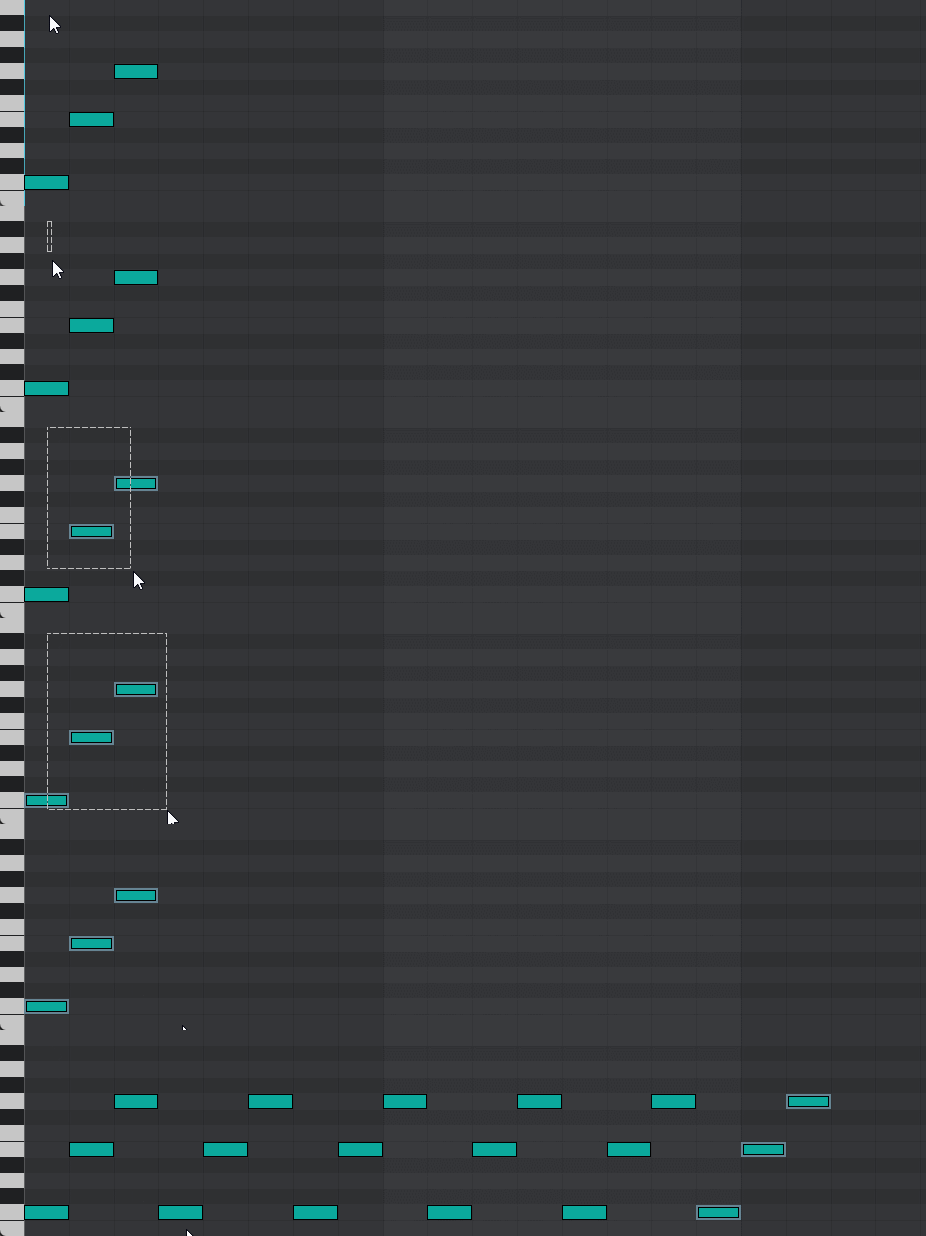
KEY1 + Mouse Wheel
Moves the selected items left and right.
KEY1 + SHIFT + Mouse Wheel
Moves the selected notes up or down one semitone.
KEY1 + CONTROL + SHIFT + Mouse Wheel
Moves the selected notes up or down one octave.
KEY1 + CONTROL + Mouse Wheel
Changes the length of selected MIDI notes.

KEY1 + Mouse Wheel basically triggers the left/right cursor movement. And together with the SHIFT key, it triggers the up/down cursor movement. So when no item is selected it can be used to navigate between tracks and scenes, and together with the CONTROL key it can be used for track selection (Session view) or time selection (Arrangement view and clip editor).
Feel free to experiment with these combinations anywhere in the Live interface to discover other possible uses.
KEY1 + Mouse X Buttons
Reduces/Increases the grid size.
KEY1 + SHIFT + Mouse X Buttons
In the MIDI clip editor shift all notes down/up one octave.
KEY1 + CONTROL + Mouse X1 Button
Toggle loop brace. Works the same as Ctrl+L
KEY1 + CONTROL + Mouse X2 Button
Select all. Works the same as Ctrl+A
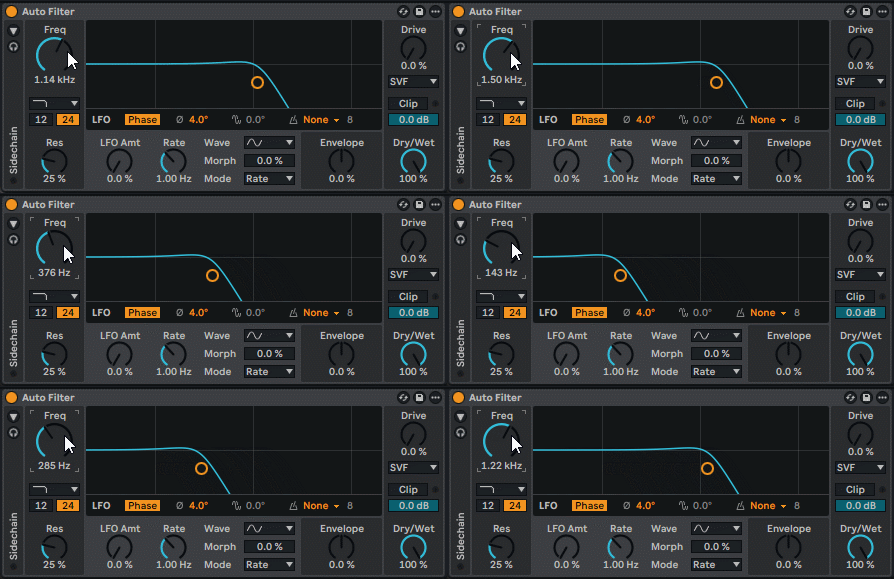
After clicking on any Live parameter to put focus on it, the mouse wheel along with the special key KEY1 can be used to modify the parameter value. Use in conjunction with SHIFT for sliders and in conjunction with CONTROL for fine adjustment.
Note that this action only works if ‘Move/Resize modifiers’ is enabled in the settings.
The actions performed with the special key KEY2 don’t add anything new, but they simplify Live’s keyboard shortcuts for changing and showing/hiding views. Most notably, the very frequently used SHIFT+TAB can now be performed with a single key.
All actions are centered around the special KEY2 key when combined with the ALT / SHIFT / CONTROL keys, resulting in a more logical usage than LIVE’s keyboard shortcuts.
KEY2 : Toggle between device/clip view.
CONTROL + KEY2 : Show/hide device view
ALT + KEY2 : Show/hide clip view
SHIFT + KEY2 : Expand clip view
CONTROL + ALT + KEY2 : Show/hide mixer
CONTROL + SHIFT + KEY2 : Show/hide browser
These key combinations only affect VST and VST3 plugin windows.
CONTROL + W / ESC : Either one can be used to close a plugin window. Since some plugins may require the ESC key at some point, it’s generally recommended to use CONTROL+W. However, if none of the plugins you use require the ESC key, you can use it, as it’s more convenient to use one key than two.
CONTROL + ALT + W : Close all visible plugin windows, regardless of whether the focus is on any of them.
F10 : Show or hide all visible plugin windows. It’s the same as pressing CONTROL+ALT+P.
CONTROL + SHIFT + Z : Triggers the Redo action of the undo history.
F2 : The same as CONTROL+R, used to rename, but in the style of Windows Explorer and other applications.
Mouse Wheel : Changes the default behavior of the mouse wheel so that instead of scrolling, it zooms horizontally. It can be used in conjunction with the CONTROL key for scrolling.
Mouse X1/X2 : The same as the Z and X keys, used to zoom in and out on the time selection.