EPC Devices - Online Help
Installation
The first step is to create a folder called “EPC Devices” in the user library. It is important that the folder is located in the root directory of the user library. This is necessary for the correct loading of the presets included in each download.
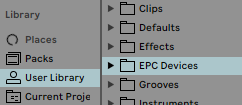
In the downloaded ZIP file, you’ll see two items: the “info.txt” file and the folder containing the devices and presets. Simply place that folder inside the “EPC Devices” folder you created in your user library.

The example image above shows the download of the EPC Devices for the Valhalla DSP plugins. Simply place the “Valhalla DSP” folder inside “User Library” > “EPC Devices”.
Loading presets
After installation, navigate to the “User Library” > “EPC Devices” > “Valhalla DSP” folder (this follows the previous installation example).
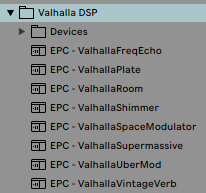
There you will find the presets ready to be loaded into the project. Each preset is an Effects Rack containing the EPC Device and the VST plugin already linked.
It’s not mandatory to have them within an Effects Rack, so you can ungroup them if you wish. The only requirement for everything to continue working is that the EPC Device is located to the left of the VST plugin.
If you decide to move the VST plugin within the project, make sure to also select the EPC Device and move both at the same time.
VST plugin versions and notes
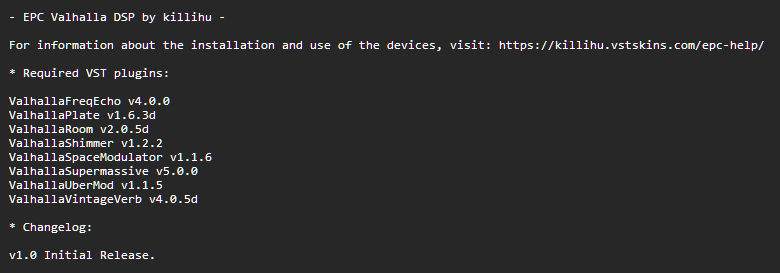
The “info.txt” file contains the list of necessary VST plugins and their version to run correctly with the EPC Devices. It may also include additional information, such as specific details about the behavior of some controls. Don’t forget to check it out.
Problems loading presets
If the following message appears on the device when loading a preset, it is because the location within the user library is incorrect.

When a preset can’t find the devices in a relative path, it uses the absolute path corresponding to the time the preset was created. Obviously, the absolute path was created on killihu’s computer, and therefore the preset can’t find it on your computer.
You can review the installation process again, or simply use the “Manage Device File” button to have Live automatically search for the device. Once found and loaded, save the preset for future use. This procedure is also the one indicated if you want to store the devices in a different folder than the one indicated in the installation process.
Versions prior to Live 12
Most EPC Devices should work in versions prior to Live 12, but the presets included in the downloads were created using Live 12, and therefore do not work in earlier versions of Live. In that case, the parameters in the Configure Mode section of the VST rack must be configured manually.
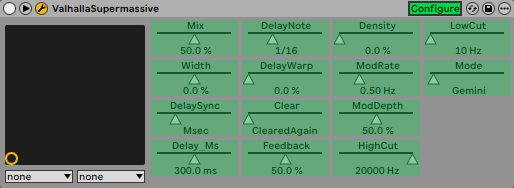
With the Configure button enabled, clicking on a VST plugin control adds it to the rack. Additionally, it is possible to click and drag to change the order of the parameters in the rack.
The links below allow you to download the parameter settings for the VST plugins.