ALFIL
Antivirus warning / Download blocked
The app contains an AutoHotKey script. Years ago all antiviruses detected these scripts as viruses/trojans due to their characteristics. Currently, most antiviruses have been updated and detect that AutoHotKey is safe, although some still do not.
You can upload the exe file to virustotal.com and you will see that all the major antiviruses mark it as safe. Only a few showing it as unsafe, which is known as a false positive.
If your antivirus blocks the app from running, add the exe file to the exceptions list.
Some browsers may block the download. As mentioned above, you can allow the download safely. The procedure for allowing blocked downloads varies depending on the browser used.
Installation and execution
Extract the downloaded ZIP file and run the “ALFIL.EXE” file to start the app. An icon will appear in the system tray. To close the app, right click on the system tray icon and select Exit.
Since ALFIL only interacts with Live and does not interfere when working with other programs, you can choose to start it automatically when Windows starts.
In the following How To Geek article you have a small guide explaining how to do it.
https://www.howtogeek.com/208224/how-to-add-a-program-to-startup-in-windows/
How to use
Once the app has started, and with the focus on the Live window, press the F12 key to display the ALFIL window. Click on any of the buttons to load the corresponding item. The window will close and the item will be loaded into Live. The window can also be closed using the ESC key.
Configuration
Double-click the tray icon or “right-click > Settings” to display the settings window. You can use the Apply button at any time to test the changes without closing the settings window.
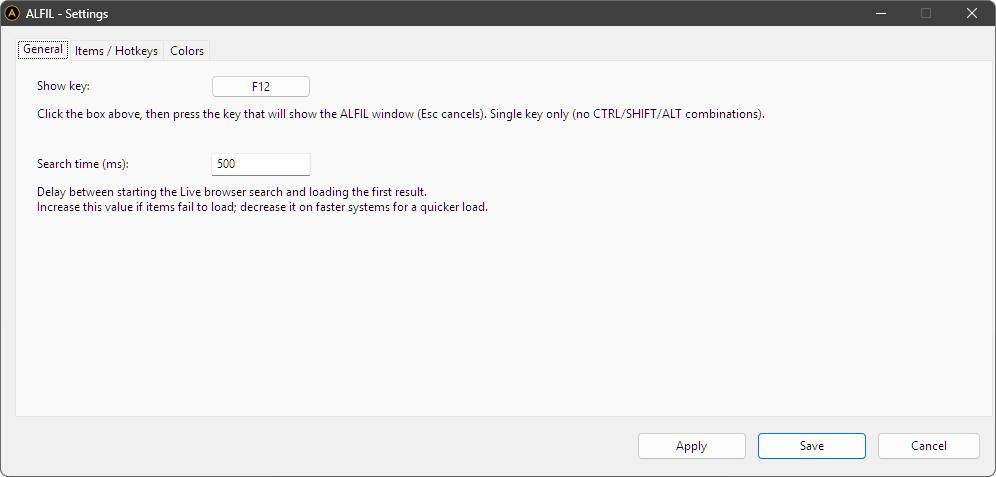
Settings - General
The “Show key” parameter sets the key used to display the ALFIL window. By default it is F12. You can change it to any individual key. It does not support keyboard combinations such as CTRL+Key.
The “Search time” value sets the time between starting the search in the Live browser and loading the first item in the search result. By default it is set to 500ms. Depending on the size of the Live library and the speed of the hard drive, this value may need to be increased..
If ALFIL does not load elements, increase the value of “Search time” until the load is successful. If you have a modern PC you can probably set the “Search time” value below 500ms to get a faster loading time.
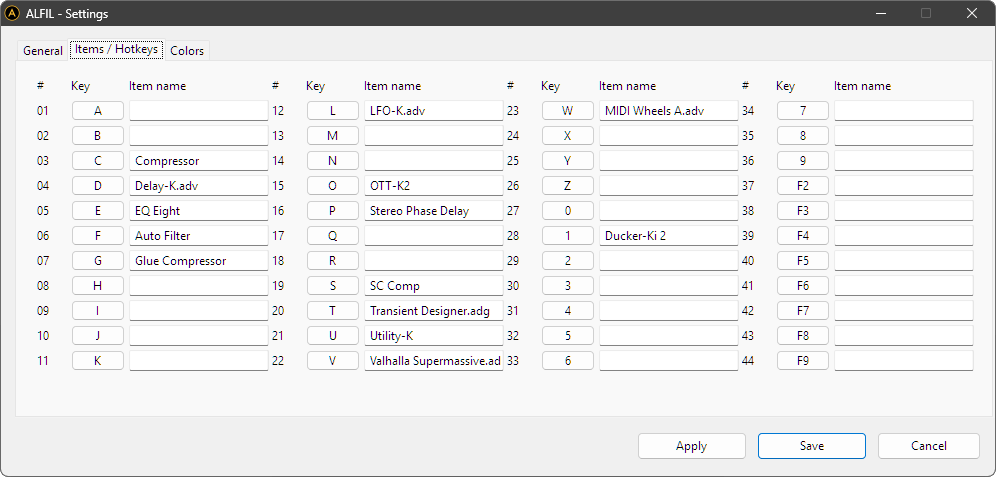
Settings - Items/Hotkeys
The “Item name” fields indicates the elements to load into Live. Since ALFIL loads the first search result in the Live browser, before writing the names of the elements it is advisable to perform a manual search in Live to ensure that the desired element is in the first position of the search result. File extensions can be written in the name of elements.
For each element it is possible to assign a key so that when the ALFIL window is visible it is not necessary to click on the buttons. By using the assigned keys you can speed up the process of loading elements in Live. Individual keys can be set, not keyboard combinations such as CTRL+Key. The assigned keys will be displayed to the left of the corresponding buttons in the ALFIL window.
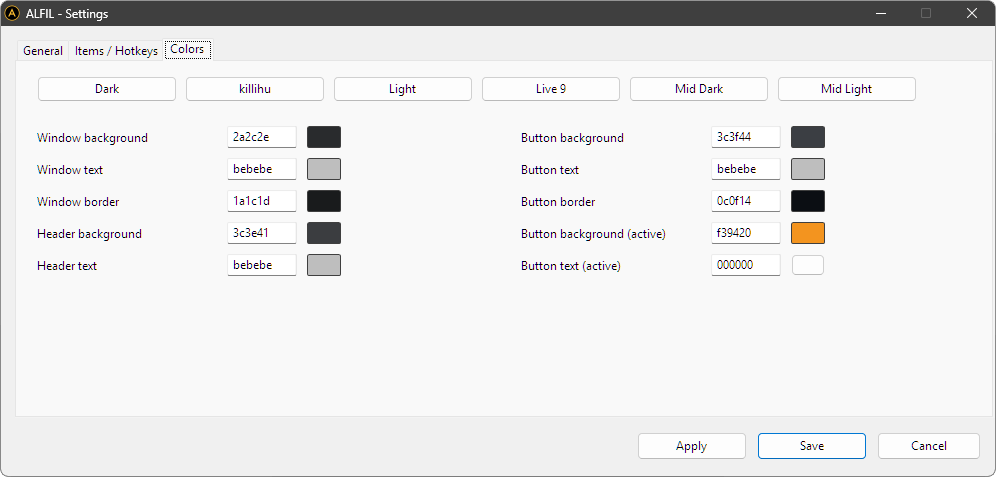
Settings - Colors
It is possible to assign custom colors to the ALFIL window to match Live’s color theme. You can manually enter the value for each color or click the color box, which displays a standard OS color picker window.
Several templates are included for some Live color themes, which are activated using the buttons at the top.
How to run multiple instances
It is possible to use multiple instances of ALFIL simultaneously. To do this, simply change the name of the executable.
An example:
- Duplicate “ALFIL.EXE” and rename it “Effects.EXE”.
- Run “Effects.EXE”
- Open the “Effects.EXE” settings, change the “Show key” and configure the elements you want to load into Live.
- Restart “Effects.EXE”.
You will see that the new copy (Effects.EXE) will display the text “Effects” as the window title.
This way it is possible to use as many instances of ALFIL as you want, just remember to configure a different “Show Key” for each of them.
Troubleshooting
Items not loading in Live
If by pressing one of the ALFIL buttons the search in Live starts but the corresponding element is not loaded, the “Search time” value must be increased.
An incorrect item is loaded
ALFIL loads the first element found in the Live browser search result. Perform a manual search in Live to ensure that the element you are trying to load appears in the first position of the search result. To do this press CTRL+F in Live.
Focus returns to another window
When launching ALFIL from a File Explorer window, after loading an item in Live there may be a case where the focus returns to the File Explorer window instead of Live.
Tabbing between windows usually fixes this, or simply close the File Explorer window. The best way to avoid this is by starting ALFIL from the Desktop or starting it automatically with Windows.